This section lists bugs and limitations that are known to exist in the software. If a future version of the software resolves a bug listed here, the bug is moved to the Fixed bugs section of the release notes accompanying that version of the software. Limitations new to Prinergy 11.5:Preflight+ on PDF Output:- Loose page output status is incorrect if output with Preflight+ and the number of output subpages is more than one page. (PRINERGY-54356)
- If you output a Multi-Page PDF file, you must select the first page to be able open the report.
Mac Workshop:- Mac Workshop: Processing info window stays on top of running applications if you launch Preps or Pandora interactively. (PRINERGY-54326)
- We have a switch that can be applied to change this behaviour. The switch has a side affect, where that the processing window will fall behind the job manager window (when you click the job window)
- Refer to Kodak Customer Portal KA28777 for the procedure to set the switch.
New Feature to Abort Output if imposition contains an unassigned page:- If the imposition contains more than 1 unassigned page, history only reports 1 of them.
Limitations relevant to Prinergy 11.0 and previous versions:- New Acrobat Mode is not supported with Plugins
- Acrobat "Use Page Cache" could be helpful to be ON for Complex PDFs when using the Geometry Editor Plugin. Note, we force it off when using the Trapper Plugin.
Changing font size in Workshop Preferences does not apply to all menus:- In Prinergy 10 and previous the job finder list, job favourites and column data (filename, date refined etc) were changed. In Prinergy 11, we extended this to the dropdown and contextual menus, which can be controlled with the "Apply to All" checkbox in preferences.
Preps:- Preps Production reports cannot be created via RBA (PRINERGY-52932, PREPS-16717)
- Most of the Preps Page and Page Bleed Marks issues have been addressed in Preps 9.5. Please see the Preps 9.5 Release Notes for more details
VPS+- VPS+ is only installed on macOS 10.15 and above Macintosh systems. VPS Classic will continue to be installed on Windows clients and legacy Mac clients, until VPS+ has sufficient feature parity with VPS Classic.
Oracle Patcher:- To install the latest qualified Oracle patches, please contact your regional support office.
Azure File Storage:- Azure Storage "Add Azure" in Prinergy Administrator remains in development at this time and is not ready for release
Workshop options "VPS from KMS to Local" and "Lock File for Edit":- These options remain in development at this time and are not ready for release.
- Note: They will become visible in Workshop if you create the KMSFileSync share as part of the W9.5.0.x Workshop patch procedures
Page Labels:- Page Labels column and variable marks do not populate correctly if you include Prefix when numbering pages (PRINERGY-53029)
Creating or Importing Preps Impositions with 500 or more Signatures is not supported (PREPS-16758) - Depending on the exact content the exact number could be different
Prinergy variable $[PageName] populates incorrectly if pages are n-up (PRINERGY-53644) - Workaround: Use Prinergy variable $[PageFileName] for n-up impositions
Some free "Internet fonts" can cause issues
- Malformed Fonts that do not follow strict specifications (typically found for free on the Internet) may cause issues on refine and or output. Proof carefully if using these types of fonts.
- Using a Preflight+ check such as "List Potential Font Problems" is sometimes a good way to mitigate this risk.
Dashboard has been removed in Prinergy 9.0 and is no longer supported
- With the end of support for Adobe Flash, Dashboard is no longer available in Prinergy. Dashboard functionality is migrating to the PRINERGY On Demand portal. See PartnerPlace Kodak Customer Portal answer ID 75256 for more information.
PDF Editor Adobe Illustrator Plugin is no longer installed as of Prinergy 9.0 macOS- The shortcut WorkshopInstaller does not work properly. If you double-click it, Workshop will not be installed.
Workaround 1. Connect to the WkspInstall share on the server.
2. Within the share, navigate to MacOSX>Disk1>InstData
3. Double-click the WorkshopInstaller application to begin the installation. (PRINERGY-49418) Managed Services - Line Extension License entitlement- The current Managed Services entitlement under the Line Extension License feature may not be reflected in the number of JTPs you are licensed for on your Prinergy Primary. Version 9.0.0 is currently limited to a maximum of seven trapper JTPs and 15 Register JTPs.
Send to Digital - No Target Device on macOS 10.15 and above- The action needs to use Digital Direct/Digital Submit component which is 32-bit and not compatible with 64-bit macOS 10.15 and above. The process stalls on Create Document while waiting for the 2nd “Digital Submit” window to pop up. The option is available and working on Windows clients and please do not use the option on macOS 10.15 and above. [PRINERGY-51752]
Digital Job Ticket Editor- In Windows, when using Digital Job Ticket Editor from within Workshop to edit a job ticket, it is intended to behave as a modal window, that is, it should prevent interactions with other elements of the Workshop client user interface until you have completed your interaction with Digital Job Ticket Editor. The current behavior on Windows is non-modal and incorrectly allows other elements in the Workshop client to be edited while Digital Job Ticket Editor is open. Therefore, it is not recommended to do anything in Workshop until you have finished using Digital Job Ticket Editor (clicking Submit or Cancel ). [PRINERGY-40231]
When using Digital Job Ticket Editor from within Workshop (Send to Digital command) or when opening Device Track from the Workshops Tools menu, the Measurement Unit defined in Workshop's Preferences is used and the Weight Unit and Thickness Unit (Caliper) are taken from Setup's Preferences.
When Device Track is opened on the web (not from within Workshop), all unit settings in Digital Job Ticket Editor are taken from Setup's Preferences. [PRINERGY-42049] - Settings available In RBA are not necessarily relevant to all digital devices. If you set a parameter which is not relevant for the selected device, this setting will be ignored when the rule is executed.
- Digital Job Ticket Editor can only display substrates in the Substrate drop down list that have sizes assigned. If a user creates a substrate on the digital device that lacks a defined size, it will not be sent to Prinergy and will not appear in Prinergy's Job Ticket Editor. [PRINERGY-46624]
- Digital Job Ticket Editor's Substrate drop down cannot display two substrates with the same name. If a user defines two substrates with the same name and size only one of them will be appear in Job Ticket Editor. [PRINERGY-46624]
Commas are not supported as a decimal separator in the Job Ticket Editor. To change the number format, open the Region control panel and press the Additional Settings button. When the Customize Format window appears, select the Numbers tab and make sure that the Decimal symbol is set to a period (.). 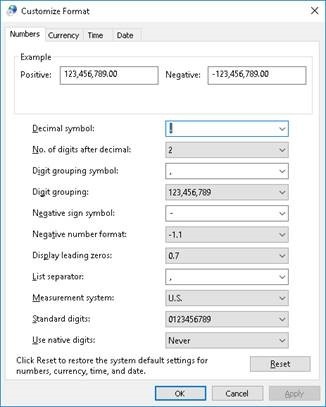
Device Track- Resizing columns in Device Track may result in columns being pushed off screen. [PRINERGY-41180]
An issue with status reporting coming from Kodak Xpo can cause the In Process queues in Prinergy’s Device Track UI and Xpo to get out of sync and display output separation in the wrong order in Device Track. [PRINERGY-47843] After successful completion of output to EFI or Canon digital front-ends, the completed output jobs are absent from all queues in Device Track. [PRINERGY-47923] [PRINERGY-43780] - In some older versions of EFI Fiery software, the number of inks reported was limited to five. This would cause jobs with more than five colors to incorrectly limit their color reporting back to Prinergy’s Device Track UI to five colors. [PRINERGY-46698]
When resubmitting a separation via Device Track, the separation receives a new Job ID from the device control software (Xpo or Print Console). This is due to the separation being treated as a new output instance rather than a remake of a previous output.
TIFF Direct CTP connectivityCTP connectivitySetupDue to limitations in third-party JDF implementation, some settings may not flow back to Prinergy Workflow’s Setup application when updated in the front end software. This can include: binding edge, maximum density, layout, and sheet size options. [PRINERGY-39050] [PRINERGY-39982] [PRINERGY-40039] [PRINERGY-41632] [PRINERGY-41732] [PRINERGY-41745] [PRINERGY-41836] [PRINERGY-41906] - If you try to import substrates and/or reload device capabilities (in Setup > Equipment > Digital Device) from a connected press or DFE while this device is down, the substrates and/or device settings will no longer be visible in the Digital Job Ticket Editor when you submit a job. Once the device is up and running, you must re-import the substrates and/or reload the device capabilities so that they are visible again in the Digital Job Ticket Editor. [PRINERGY-45261]
- Setup is not localized with Chinese and Japanese on macOS Sierra (version 10.12) and macOS High Sierra (version 10.13) because of missing fonts. [PRINERGY-46365]
To solve this issue, install the missing fonts:- MS Gothic.ttf -> for Japanese
- 华文黑体.ttf -> for Chinese
Job search- In Job Finder, in the job advanced search feature, the search fails if you use the is not operator with a numerical value. [PRINERGY-38941]
- In Job Finder, in the job advanced search feature, if you select Any, the search results contain both jobs and pre-jobs that match the defined search criteria. [PRINERGY-39664]
Integration with ColorFlowThe following limitations have been identified for using the ColorFlow software with Prinergy: Pages added to a ColorFlow-enabled job using Prinergy's Bypass Refine will have undefined Color Setup. This is expected behavior. Refining with ColorConvert enabled is recommended with ColorFlow integration. If you attempt to output a file with a different snapshot number from the number you defined in the refine process template, an error message appears.
ColorConvertThe following ColorConvert problems have been identified: Color matching certain files with transparent objects can result in significant changes in appearance. The problem is file specific and is dependent on the transparency blending modes applied, the object's color and the DeviceLink or ICC profile used to colorconvert the objects. The problem occurs because each graphic and image object used in the transparency group is color-converted separately. Blending of the objects in the destination color space changes the appearance.
Recommendation: Flatten the PDF files. If your PDF files contain RGB data, it is highly recommended to Color-Convert this data prior to flattening. Please refer to Partner Place Kodak Customer Portal Answer ID 72326 for best practices and setting up a 2-Step refine.
Note: Contone proofing cannot be used to predict this issue when colormatching is performed on final output. ColorMatch vector overprint handling of certain files with transparency groups that also use overprint management can generate unexpected results. The new objects generated by the ColorMatcher vector overprint handling process end up ruining the appearance. Contone proofing with raster overprint handling cannot be used to predict the problem with vector overprint handling used on final output. See the Prinergy help for detailed descriptions about the processing differences between raster and vector overprint handling.
Recommendation: Flatten the PDF files. If your PDF files contain RGB data, it is highly recommended to Color-Convert this data prior to flattening. Refer to Answer ID 72326 for best practices and setting up a 2-Step refine. RGB Transparency Blend Color Space is not supported. Blend spaces should only be defined as DeviceCMYK.
Recommendation: Change the blend space in the input file or set up a Preflight+ profile to detect and/or fix the condition. ColorConvert is automatically selected in Vector Output process templates after you upgrade to Prinergy 8.3. This is due to a migration script bug. If you have a Basic License which doesn’t enable ColorConvert, vector output will fail. If you are licensed for advanced Color Management, Color Conversion will be applied at output and may cause incorrect output. [PRINERGY-42167]
Workaround: open any Vector Output process templates which should not have ColorConvert enabled and clear the ColorConvert checkbox.
Preflight+When upgrading to Prinergy 11.0 from 7.5.x, 8.0.x, or 8.1.x Custom Checks and Fixups will not be migrated as their own entities. However, profiles referencing Custom Checks and Fixups will have been updated to incorporate the Custom Checks and Fixups; meaning, they will continue to work as they did prior to upgrading. callas process plans and profiles that create layers or contain unlicensed DeviceLinks are not supported. Kodak does not support or provide a license of callas pdfToolbox software. However, a copy of pdfToolbox (Preflight+ Profile Manager) is provided and licensed solely for the purpose of editing and creating preflight profiles that are to be used within Prinergy. Modification of the license as well as changing or upgrading the version of callas pdfToolbox that is provided with Prinergy is not recommended and not supported by Kodak. Kodak does not provide assistance or support for editing or creating new callas profiles. For information and support with the creation and editing of profiles, go to https://help.callassoftware.com/m/pdftoolbox/l/671652-profiles-checks-fixups-process-plans-and-libraries.
Note: Kodak does support issues related to the integration of callas preflight within Prinergy Workshop. - Overview reports contain information from all pages in a multi-page PDF input file. When you open the report, it may contain information about pages you haven't selected.
- Report Page links are supported only when you copy the full report.
callas fix-ups are "use at own risk". Exercise extra caution and check your proofs closely when applying fix-ups. callas Profiles and Prinergy support different variations of the Chinese character set. - callas template-based reports via PDFToolBox are not available in Preflight+ in Prinergy.
Because each PDF report contains a full copy of the original input PDF file, using Preflight+ may result in higher demands on storage space in your job home disks. - To avoid Preflight+ becoming a bottleneck in the Refine process, it is advised to purchase the same amount of Preflight+ JTPs as Refine JTPs.
- The use of variables that prompt users for input are not supported.
- Customized checks and fixup names do not translate. Create them in the language you require.
- Creation of New Libraries for organizing Checks and Fixups into categories is not supported
Note: Profiles with Devicelink, Javascript and Variables are not supported. - The "Test" function seen when creating new profiles is not supported
- Advanced Preflight is now in code freeze. There will be no further code changes, it is left in place as a convenience. Please consider migrating to the newer Preflight+ engine.
Adobe PDF Print Engine- The Adobe PDF Print Engine (APPE) RIP cannot process PDF files containing embedded PostScript objects, including pages that were processed with PostScript bypass or with the OPI bypass features of Prinergy.
- The APPE RIP is the preferred RIP for Prinergy.
- As of APPE 4.7 a maximum of 123 spots colors is supported (in addition to the four CMYK process colors, for a total of 127 colors).
Observe the following precautions: Proofs and plates: In plating jobs with the APPE RIP, be careful with plates that were proofed with the previous APPE RIP. Because the RIPs are different, there is a slight chance of an interpretation difference between proof and plate. Ideally, jobs should be plated with the same version of Prinergy that was used to generate the proofs.
Note: To avoid this situation you should coordinate hub and spoke configurations when upgrading Prinergy. Reprints: For reprints of jobs that were printed previously using an older RIP, it is recommended that you rerun proofs using the new RIP to ensure there are no unforeseen differences between the original press run and the reprint.
PANTONE+ V3 libraries- In keeping with PANTONE best practice guidelines, all previous PANTONE libraries have been removed as factory libraries and will no longer appear in your process templates. Previous Prinergy PANTONE libraries are provided in archive format and can be imported as user libraries, if desired, for legacy reprint jobs. For more details, see About PANTONE libraries.
Maxtone CX, Maxtone FX, and Maxtone SX RIP- Kodak Maxtone CX, Maxtone FX, and Maxtone SX screens are available for APPE RIP only. They are not available for use with CPSI RIP.
System spot color library L*a*b* 2000When system spot color library L*a*b* 2000 is added to a refine process template, it may not appear in the spot color libraries list but it will be available to be used by refine processes created from the refine process template. [PRINERGY-44022] Refine to PDF/x-1a fails when Lab Spot Color Libraries are loaded and you are NOT converting Spots- As of Prinergy 8.0, all factory Spot Color libraries were replaced with Pantone V3 Lab libraries. If you refine a file that contains a Spot Color that is defined in the Lab library, the Spot Colors Alternate Color Space will change to Lab. Since Lab is not allowed in PDF/x-1a, the process will fail.
- To resolve this, you can remove the PANTONE V3 library or load a CMYK library, such as a legacy user or ColorBridge library (Answer ID 73041).
Note: If your incoming PDF has Spots with LAB Alternate Color space, you will want to have a CMYK Pantone library loaded, otherwise refine will also fail. - When converting Spots to Process, its recommended to use the new PANTONE V3 Library. See the About Pantone Libraries section of the Workflow Help for more information. [PRINERGY-43630]
Selecting “Replace variable marks in PDF content files” causes incorrect overprints on some objects - When using this setting you must follow the procedure outlined in Partner Place Kodak Customer Portal Answer ID 69302. Failing to do so could result in serious Output problems.
Windows Server 2016 and 2019 operating systemsThe following limitations have been identified when running Prinergy using the Windows Server 2016 and 2019 operating systems: Limitations with SMB 2 and SMB 3 on Windows Servers in mixed environments- By default, Prinergy servers running Windows Server 2016 and Windows Server 2019 are shipped with SMB 2 and 3 enabled.
- For best performance, all Prinergy servers and tertiary servers should be running the same operating system version. If any of the tertiary servers are not running at least Windows Server 2012 R2, SMB 2 and 3 need to be disabled so that SMB 1 is used. If this is not done, this can cause performance and file access/transfer issues. For assistance in disabling SMB 2 and 3, contact your local support representative.
Network File System connectivity- Prinergy does not support The Open Group UNIX NFS (Open Group UNIX Network File System). You can access UNIX servers using an SMB/CIFS protocol installed on the server (such as SAMBA).
NexPress Job Ticket Editor cannot be launched by Digital Submit on Windows 10- When running Digital Submit with NexPress on Windows 10, the Job Ticket Editor in Digital Submit fails to launch. [PRINERGY-41688]
Workarounds: To launch the NexPress Job Ticket Editor: - Run Digital Submit and NexPress Job Ticket Editor on a workstation with a different operating system
- Manually launch the NexPress Job Ticket Editor outside Digital Submit.
HP Job Ticket Editor cannot be installed on Windows 8 and Windows 10The HP Job Ticket Editor is software available from HP which is used in Prinergy Workflow when connecting to HP digital presses. The latest version of the software available from HP is not compatible with Windows 8 and Windows 10 operating systems. HP is aware of the issue and will address it in a future product update. [PRINERGY-41575] HP- When using a Hewlett Packard SmartStream DFE connected to multiple presses, each press connected to the SmartStream DFE consumes a connection license from Prinergy Workflow. If you have more presses connected to the SmartStream DFE than you have licenses for connections in Prinergy Workflow, Prinergy will not be able to connect with all presses connected to the SmartStream DFE. [PRINERGY-44364]
- If you try to import substrates and/or reload device capabilities (in Setup > Equipment > Digital Device) from a connected press or DFE while this device is down, the substrates and/or device settings will no longer be visible in the Digital Job Ticket Editor when you submit a job. Once the device is up and running, you must re-import the substrates and/or reload the device capabilities so that they are visible again in the Digital Job Ticket Editor. [PRINERGY-44749]
- HP DFE with multiple connected presses does not recognize Prinergy server by its name. Make sure the Prinergy server name is correctly resolved on the DFE. For a DFE running on Windows, add the Prinergy host name and IP address in
C:\Windows\System32\drivers\etc\host [PRINERGY-45428]
Ricoh Perfect bound jobs with covers sent to Ricoh digital front end with PDF RIP Enhanced by Kodak type S4 may result in output with incorrect orientation. [PRINERGY-42077] Due to limitations in JDF implementation for Ricoh digital front end with PDF RIP Enhanced by Kodak type S4, layout options are not currently supported. [PRINERGY-39050] When sending a surface to Ricoh, the binding edge defined in the job will rotate 90 degrees clockwise due to geometry translation, but the end result of the output at the printer will be correct. If you have questions, contact your Kodak representative for assistance. [PRINERGY-42029]
Konica Minolta- The status of coated or uncoated stock may not be imported or reflected correctly in Prinergy Setup for digital connections to Konica Minolta IC-602 or C1070 digital printer front end software. Job settings may need to be manually updated in the Konica Minolta software to complete output successfully. [PRINERGY-43211]
EFI- Due to a limitation in the bi-directional communication with EFI’s software, completed jobs are do not appear in Prinergy Workflow’s Device Track Completed queue and are not present in any queues upon completion. [PRINERGY-43780]
- Due to an EFI issue with bi-directional connectivity, Prinergy Device Track displays incorrect number of inks. [PRINERGY-46698]
- Due to a known EFI process with legacy JDF connectivity, jobs are not printed directly, but go to the On Hold queue first. [PRINERGY-46646]
Prinergy Workshop localized to Japanese- Submitting a file to Prinergy Workshop localized to Japanese via drag and drop to a process template may cause Workshop to quit unexpectedly. [PRINERGY-43660]
Prinergy Signature Select Limitations- Prinergy Signature Selection works in Preps 5 mode. Therefore, there are several limitations related to working with Preps 6 or later.
Editing impositions- It is not possible to edit come-and-go, cut-and-stack, and multibinding style jobs with Signature Selection. If you try to edit an imposition that uses any of these styles, the Use Prinergy Signature Selection option will not be available in the Edit Imposition dialog box. Instead, you will be able to select Use External Imposition Application to start Preps.
- If you create a come-and-go or cut-and-stack imposition using Signature Selection, and then edit the imposition using Preps 6 or later, a warning message appears, indicating that the job was produced in an earlier version of Preps. You can ignore this message.
Importing Impositions- Signature Selection does not support import of Preps 6 jobs with come-and-go or cut-and-stack binding styles. When creating a new imposition, if you select Use existing Preps job and select a Preps 6 job with a come-and-go or cut-and-stack binding style, an error message appears. You have the choice of selecting a different job file or using external imposition software to create the imposition.
Creating Impositions- When you create a new imposition, the come-and-go or cut-and-stack binding styles are available in Preps 5 mode only.
- Preps 5 and 6 differ in the way that they display cut-and-stack and come-and-go jobs. In Preps 6, cut-and-stack jobs are shown as multiple webs, and come-and-go jobs are shown as multiple sections. In Prinergy Workshop, such jobs are displayed in the Preps 6 format, while in Signature Selection, they are displayed in the Preps 5 format. This is just a difference in display. The page assignment is correct and the imposition will print correctly.
Auto Select in Prinergy Signature Selection- The use of Auto Select in Prinergy Signature Selection may produce different results from the use of Auto Select in Preps. Check that Auto Select produces the expected results.
If required, you can use Move Up or Move Down to adjust the signature order, or use Add or Delete to get the right signature.
To prevent the problem, edit the PrepsPrinergy.cfg and the PrepsPrinergy.cfg.template files to include the line:
AUTOSELECT_MINIMUM_PAGES:1.
Re-editing imposition of imported job may not work in certain cases- Re-editing a Preps imposition from Workshop may not work for certain imported jobs. If the imported job contains an imposition name that is greater than 25 characters and had an imposition that was previously edited and the older version was deleted. To prevent this issue when editing existing impositions always choose the import option to "Keep existing imposition". [PRINERGY-50121]
RBA- Rules Based Automation (RBA) may not start after upgrading to Prinergy Workflow 8.1.2 or later. To address this issue, if encountered, see Partner Place answer Kodak Customer Portal answer 73601.
Creating Jobs Fails After Downgrading to Prinergy Workflow 8.1.2 from Prinergy Workflow 9.x- If a downgrade to Prinergy 8.1.2 is required after upgrading to 9.x, errors may be encountered with creating jobs in the downgraded 8.1.2 server.
- If you encounter this problem, contact your Kodak service representative to address the issue with your Prinergy system. [PRINERGY-46987]
McAfee 10.5.3 / 10.6 on Windows 2016 with Windows Defender- McAfee 10.5.3 / 10.6 cannot be installed and run on Windows 2016 if Windows Defender is installed. This is a limitation of the McAfee anti-virus software that requires Windows Defender to be uninstalled on systems you wish to install McAfee on. [PRINERGY-48947]
Adding an output device in Prinergy Administrator may not work- The first time you attempt to add an output device in Prinergy Administrator after restarting the server Prinergy is running on, Prinergy Administrator may crash. You will be able to add the device successfully after restarting the Prinergy Administrator interface.[PRINERGY-48874]
Acrobat 2017 and 2020 Support - Acrobat 2017 and 2020 are one-time purchase release updates of Acrobat DC (similar to the original Acrobat 2015 release). The Prinergy Workshop installer does not detect the folder location for Acrobat 2017 or 2020. If you are using the version of Acrobat DC that is sold and labelled as Acrobat 2017 or 2020, you will need to manually install the Acrobat DC plugins in Acrobat 2017 or 2020.
- See Partner Place Kodak Customer Portal Answer ID 74309 for plugins and manual installation instructions.
Export Job- Exported jobs from Prinergy 9.x that contain Preflight+ XML reports cannot be imported into Prinergy 7.x.
Submitting Multiple Signatures- Submitting over 100 signatures (200 surfaces) * at one time can impact Prinergy performance. *Results may vary depending on the number of signatures and the complexity of the page content. (PRINERGY-52976)
|
